This document outlines the procedure for configuring computers for clients utilizing custom Windows images. Our current custom image clients are:
Freedom Care – Account Manager: Juan Alvarado - Jalvarado@insigniapa.com
TileBar – Account Manager: Iara Young - iyoung@insigniapa.com
M&D – Account Manager: Karen De Ycaza - kdeycaza@insigniapa.com
All clients are managed through WorkITSafe. For support, please contact them at: ithelp@workitsafe.com Always add Panama IT Dpt. (panamaIT@insigniapa.com), CC the Account Manager and CSM.
Standard Windows Setup
Initial Configuration:
Perform a standard Windows installation.
Note: There is no requirement to integrate these systems into Azure or to run Windows Update/Driver Updates.
Data Extraction:
Execute a PowerShell script that extracts system information into an Excel file.
Submit the Excel file to ithelp@workitsafe.com via Magna5, including the relevant client and user details.
Tenant Integration:
WorkITSafe adds the computer to the Tenant, which typically takes 3–4 days, depending on the urgency.
Once confirmed by WorkITSafe, a factory reset (wipe) is performed.
After the reset, the system boots using the standard Windows image and subsequently retrieves the client’s custom image upon internet connection, displaying the appropriate client logo. If there is an alternate way of retrieve the client's custom image, it will be documented below.
Timing and Post-Integration
Preparation for New Hires:
Computers are ready for a factory reset one/two days before new hires arrive at the office. This schedule necessitates initiating the setup process several weeks in advance. The computer needs to be setup and the designated location before the new hire arrives.
Ongoing Support:
Software-related issues are primarily handled by WorkITSafe.
Our team is responsible for basic troubleshooting of network issues (using the ZScaler VPN system) and hardware diagnostics to ensure the systems function properly.
If issues are not detected on our side, the respective Account Managers must submit a ticket to WorkITSafe, or we may do so on their behalf.
Important Considerations
Client-Specific Customization:
These computers are configured exclusively with their custom Windows images and cannot be repurposed for other clients.
Should a reassignment be necessary, WorkITSafe can remove a specific device from the Tenant upon request (a computer Serial Number must be provided). Please note that this process may be time-consuming.
Remote Troubleshooting Capability:
Magna5 now supports remote connectivity to these computers via sos.splashtop.com for basic troubleshooting.
Limitation: The remote connection provides limited access and does not grant full administrative privileges.
Script Overview
The following script is used to extract Windows Autopilot information from each machine:
Run PowerShell as Administrator:
Set-ExecutionPolicy Unrestricted -Force # Run on all machines

install-script -name get-windowsautopilotinfo -Force # Run on all machines

Get-WindowsAutoPilotInfo.ps1 -Outputfile c:\User(?).csv
Execution Instructions
Run the Script
Open PowerShell as Administrator.
Execute each command in sequence.
When prompted, type ‘Yes’ to all questions in the console.
Modify the Output File Name
Replace "User(?)" in the last command with the client or department initials followed by the desktop name.
Example:
Get-WindowsAutoPilotInfo.ps1 -Outputfile c:\FC-Desktop-12345.csv
Get-WindowsAutoPilotInfo.ps1 -Outputfile c:\TB-Desktop-12345.csv
Get-WindowsAutoPilotInfo.ps1 -Outputfile c:\MD-Desktop-12345.csv
Locate the Output File
The generated CSV file will be stored in **This PC > C:**.
Next Steps
Submit the CSV file to Magna5 for processing.
Magna5 will forward the information to the appropriate party.
Await confirmation before proceeding with the next steps.
Following this structured process ensures accuracy and efficiency in setting up Autopilot-configured machines.
Apply a provisioning package - (Out Of Box Experience) OOBE
Once all prior steps are completed and the computer has been fully wiped, follow these steps to initiate Windows Autopilot provisioning (This applies to M&D only):
1. Boot the Device
Power on the computer.
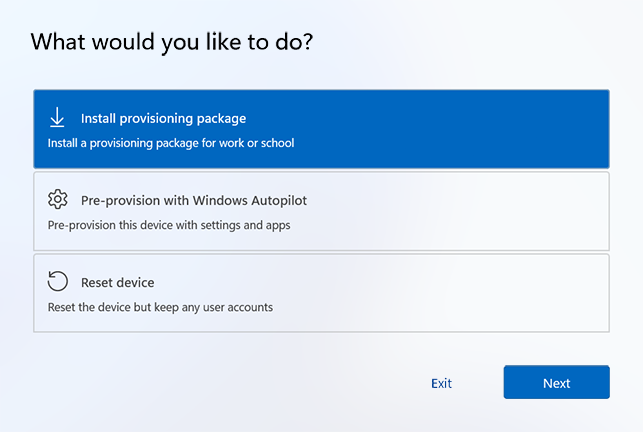
When the initial Out-of-Box Experience (OOBE) screen appears (such as language selection, locale selection, or Microsoft Entra sign-in), do not select "Next."
Instead, press the Windows key five times to open the options dialog.
From the options dialog, select Pre-prosivision with Windows Autopilot, then click Continue
2. Verify Autopilot Configuration
On the Pre-prosivision with Windows Autopilot screen, review the following details about the device:
Assigned Autopilot Profile
Organization Name
Assigned User (if applicable)
If any changes are necessary, update the information and select Refresh to redownload the latest Autopilot profile details.
3. Begin Provisioning
Click Provision to start the provisioning process.
4. Completion and Validation
If the pre-provisioning process completes successfully, a success status screen will appear.
This screen will display the same details reviewed earlier.
At this point, the computer is fully prepared for deployment.
Please let us know if you have any questions.
PROCESS OPTMIZATION - Hardware Hash Extraction via Windows OOBE.
This update outlines a significant improvement in our hardware procurement and enrollment workflow. By utilizing the built-in Windows tools, we have reduced the provisioning time from one hour per device to approximately five minutes.
| Metric | Previous Method | New Method |
| Time per Device | ~60 Minutes | ~5 Minutes |
| Manual Intervention | High (Full Setup) | Minimal (OOBE + File ) |
| Efficiency Increase | - | 95% Reduction |
PREREQUISITES
Operating System: Windows 11
Environment: Out-of-Box Experience (OOBE - Windows Image Reinstallation to reach OOB)
Hardware: External USB flash drive for data export
PREPARATION
Step 1: Install the Autopilot Script
- Connect your USB flash drive to your computer.
- Open PowerShell as an Administrator and run the following command to download the official script from the PowerShell Gallery:
install-script -name get-windowsautopilotinfo -Force
Step 2: Copy the Script to the USB.
- Depending on your system's configuration, locate the `Get-WindowsAutopilotInfo.ps1` file in one of these paths: C:\Program Files\WindowsPowerShell\Scripts or C:\Users\<YourUser>\Documents\WindowsPowerShell\Scripts
- Copy and paste this file directly into the root of your USB drive.
Step 3: Create the Automation Script (`autopi.ps1`) .
- Open the Notepad app.
- Paste the following optimized code into the document:
try {
    # Prompt for the client name to organize the CSV files
    $client = Read-Host "What's the client?"
    $sn = (Get-CimInstance Win32_BIOS).SerialNumber

    # Automatically detects the USB drive letter where this script is running
    $usbDrive = $PSScriptRoot
    $output = "$usbDrive\$client-$sn.csv"
    $scriptPath = "$usbDrive\Get-WindowsAutopilotInfo.ps1"

    # Verify that the required dependency exists
    if (Test-Path $scriptPath) {
        # Run the official Autopilot script
        & $scriptPath -OutputFile $output
        Write-Host "Success! File saved to: $output" -ForegroundColor Green
    } else {
        Write-Host "ERROR: Get-WindowsAutopilotInfo.ps1 was not found in the root of this USB." -ForegroundColor Red
    }
}
catch {
    Write-Host "ERROR:" -ForegroundColor Red
    Write-Host $_ -ForegroundColor Red
}

Read-Host "Press ENTER to close"
Step 3: Save the file directly to the root of your USB drive.
- Name the file
autopi.ps1
(In Notepad's "Save as type" dropdown, select All Files (.). If you don't, it will save as autopi.ps1.txt and won't run.)
Step 4: Create the initializer
- Create ScriptStarter.txt
- Paste the following commands in the document:
powershell

Set-ExecutionPolicy -Scope CurrentUser -ExecutionPolicy Bypass -Force

D:\autopi.ps1
Final USB Verification
Before ejecting your USB, ensure the root directory contains at least these three files:
Get-WindowsAutopilotInfo.ps1(The official Microsoft script)autopi.ps1(The automation launcher you just created)ScriptStarter.txt (The main trigger)
PROCEDURES
Follow these steps to generate the device hardware hash CSV using the pre-configured USB script.
Step 1: Boot to the OOBE Screen
Power on the new computer (or reset the existing device).
Wait until the Windows Out-of-Box Experience (OOBE) screen (the initial setup/region selection page) appears.
Press
SHIFT+F10on the keyboard to open a Command Prompt (cmd.exe) window.
Step 2: Access the Script via File Explorer
In the Command Prompt window, type the following command and press Enter:
start explorer
Connect your prepared USB drive to the computer.
In the File Explorer window that pops up, locate your USB drive and minimize the window so you can see the Command Prompt again.
Step 3: Execute the Script
Open the file
ScriptStarter.txtfrom your USB drive.Select all text, copy it, and paste it directly into the Command Prompt window.
When prompted with "What's the client?", type the appropriate client initials and press Enter:
FCTBMD
Step 4: Verify the Output
Once the script finishes running successfully, look at the root directory of your USB drive.
You should see a newly generated file named:
[Client]-[PCSerialNumber].csv(e.g.,TB-12345678X.csv).
Success: The CSV file is now ready. You can safely remove the USB drive and import the file directly into Microsoft Intune.
If the script fails with an error stating it cannot locate autopi.ps1, it means Windows assigned a different drive letter to your USB than what is written in ScriptStarter.txt
Quick Fix
Open File Explorer and check which letter is assigned to your USB drive (e.g.,
D:,E:, orF:).Manually type the following command into the Command Prompt, replacing
D:with your actual USB letter, and press Enter:
(USB_Letter):\autopi.ps1
To prevent this error on future deployments, open ScriptStarter.txt on a working computer, change the D: inside the text to match your USB's standard drive letter, and save the changes.
Was this article helpful?
That’s Great!
Thank you for your feedback
Sorry! We couldn't be helpful
Thank you for your feedback
Feedback sent
We appreciate your effort and will try to fix the article